You know the routine. Push your changes to GitHub, open a terminal, SSH into the server, run git pull, install, build, restart. It works fine, until you skip the build step and wonder why the live site still shows yesterday's copy.
GitHub Actions can run those same commands for you, every single time you push to main. Nothing changes on the server. You're not learning a new deployment system. You're just writing down the steps you already do by hand and letting GitHub type them.
If you haven't deployed your app manually yet, start with our guide on how to deploy an app from GitHub to a VPS, or follow the Next.js deployment walkthrough as your example app.
Here's the path: you push, GitHub checks that the app builds, GitHub logs into your VPS over SSH, and your app updates itself.
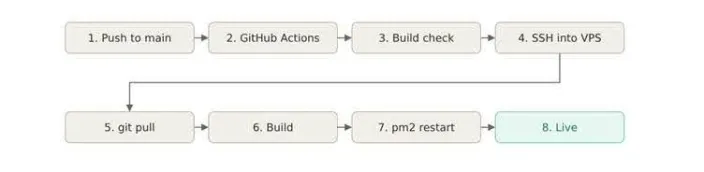
Key Takeaways: Automatically Deploy to a VPS with GitHub Actions
- You can deploy to a VPS with GitHub Actions by creating a workflow that connects to your server over SSH and runs your update commands every time you push to the main branch.
- A dedicated SSH key, created with
ssh-keygenand stored as a GitHub secret, lets the workflow log in without putting passwords in your code. - The workflow runs the same steps you'd run by hand:
git pull, install dependencies,npm run build, andpm2 restart(ordocker compose upfor Docker apps). - Building the app in GitHub first catches broken code before anything touches your live server.
- Your app's production environment variables stay in a
.envfile on the VPS, while GitHub secrets hold only what the workflow needs to connect. - Every run is logged in the Actions tab; you can see exactly which step failed and why.
What You'll Need
- An app already running on a Linux VPS. If you haven't got that far, start with the Next.js, React, Node.js, or Docker walkthrough.
- A GitHub repository where you can change settings.
- SSH access to the VPS.
- A server that can already run
git pullfrom your repository. That's the GitHub deploy key you set up in the Next.js guide.
Tip: One rule before you start: get the manual deploy working first. Automation repeats your process. It can't fix a broken one.
How It Works
A workflow file in your repository tells GitHub what to do. When you push, GitHub spins up a temporary Linux machine and runs that file. One step uses an SSH key to connect to your VPS and run the update commands.
That's the whole idea. The temporary machine is a throwaway. Your VPS is still the thing serving your app.
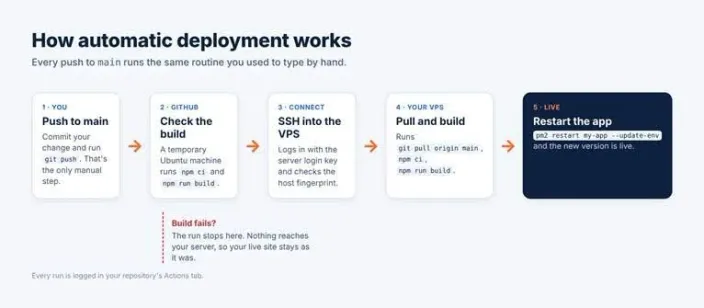
Every push to main runs the same routine you used to type by hand.
Step 1: Create a Server Login Key with ssh-keygen
You'll be dealing with two different keys; let's name them clearly.
- The deploy key you already have lives on your VPS and lets the server pull from GitHub.
- The server login key you're making now lives in GitHub and lets the workflow log into your server.
Different keys, opposite directions. Mixing them up is the most common reason this setup fails.
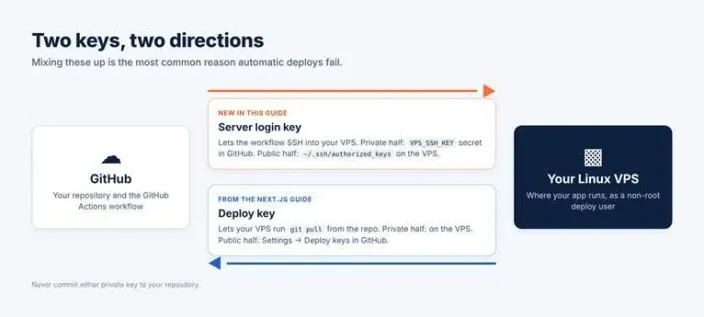
Two keys, two directions.
On your own computer, create the new key:
ssh-keygen -t ed25519 -C "github-actions-deploy" -f ~/.ssh/github_actions -N ""The -N "" part means no passphrase. That matters because nobody will be there to type one when the workflow runs.
You now have two files. github_actions is the private half; it goes into GitHub. github_actions.pub is the public half, and it goes onto the VPS:
ssh-copy-id -i ~/.ssh/github_actions.pub deploy@your-server-ipThen test it:
ssh -i ~/.ssh/github_actions deploy@your-server-ipTip: Use a dedicated, non-root user for deployments. If the key only owns the app folder, that's all the key can reach. Our advanced SSH guide covers key-based logins in more depth.
Warning: Never commit the private key to your repository. It belongs in GitHub's secrets store and nowhere else.
While you're logged in, grab your server's host key fingerprint. You'll need it in a moment:
ssh-keygen -lf /etc/ssh/ssh_host_ed25519_key.pub | cut -d ' ' -f2That string proves your workflow is talking to your server, and not to something pretending to be it.
Step 2: Store Your Server Details as GitHub Secrets
In your repository, go to Settings → Secrets and variables → Actions → New repository secret. Add four:

| Secret | Value |
|---|---|
VPS_HOST | Your server's IP address |
VPS_USER | The deploy user, for example, deploy |
VPS_SSH_KEY | The full contents of ~/.ssh/github_actions, including the BEGIN and END lines |
VPS_FINGERPRINT | The fingerprint from Step 1 |
A GitHub secret is encrypted, masked in the logs, and readable only by your workflows. You can't view one again after saving it, only replace it.
Good to Know: Keep this distinction clear: GitHub secrets hold what the workflow needs to connect. Your app's environment variables, like the database password and API keys, stay in the .env or .env.production file on the VPS, exactly where they already live. Nothing about this setup moves them.
Step 3: Check the Server Side
Log in as the deploy user and run the whole routine once, by hand:
cd ~/my-app
git pull origin main
npm ci
npm run build
pm2 restart my-app --update-env
If anything prompts for a password, asks you to confirm a host key, or fails, fix it now. The workflow can't type answers to questions.
While you're there, run node -v and note the major version. You'll match it in the workflow in a second.
Step 4: Create the Deploy Workflow
Create a file at .github/workflows/deploy.yml:
name: Deploy to VPS

on:
  push:
    branches: [main]

permissions:
  contents: read

concurrency:
  group: production
  cancel-in-progress: false

jobs:
  deploy:
    runs-on: ubuntu-latest
    timeout-minutes: 15
    steps:
      - uses: actions/checkout@v7
      - uses: actions/setup-node@v7
        with:
          node-version: 22
      - name: Check the build
        run: |
          npm ci
          npm run build
      - name: Deploy over SSH
        uses: appleboy/ssh-action@v1
        with:
          host: ${{ secrets.VPS_HOST }}
          username: ${{ secrets.VPS_USER }}
          key: ${{ secrets.VPS_SSH_KEY }}
          fingerprint: ${{ secrets.VPS_FINGERPRINT }}
          script_stop: true
          script: |
            cd ~/my-app
            git pull origin main
            npm ci
            npm run build
            pm2 restart my-app --update-env
In plain words:
| Block | What it does |
|---|---|
on: push: branches: [main] | Runs whenever you push to main, and only main. |
permissions: contents: read | The job can read your code and nothing else. |
concurrency | Only one deployment runs at a time, ensuring that an ongoing deployment is never interrupted midway. |
jobs: deploy: runs-on: ubuntu-latest | One job named deploy, on a fresh Linux machine GitHub provides. |
actions/checkout@v7 and actions/setup-node@v7 | Fetch your code and install Node on that machine. |
| Check the build | Installs dependencies and builds the project in GitHub. If the build fails, the workflow stops without affecting your live site. |
| Deploy over SSH | Logs in with your secrets and checks the server's fingerprint, then runs cd, git pull origin main, npm ci, npm run build, and pm2 restart. script_stop halts the script at the first failed command. |
What Concurrency Actually Does
This is widely misunderstood; it's worth being precise. GitHub's concurrency setting keeps at most one running deploy and one waiting deploy per group. If you push three times in quick succession, the middle deployment cancels, allowing the latest commit to deploy while skipping the one in between. That's usually what you want for a deployment. It's not a queue where every push gets its turn.
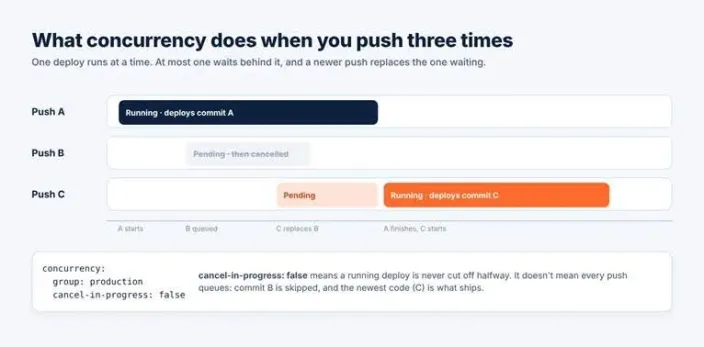
One running, at most one waiting, and the newest push wins.
Why Build Twice?
The GitHub build is a gate. It's fast, it's disposable, and it catches a broken build before a single command reaches your server. The VPS build is the one that actually ships. The cost is that you pay for the build twice, and the two can drift apart; set node-version to the same major version your VPS runs. If your server is small and builds are slow there, the better pattern is to build once in GitHub and copy the result across, which is what the static React variant below does.
Warning: Two more things that are easy to get wrong. npm ci on the server needs your devDependencies to build; don't set NODE_ENV=production globally on the VPS. And --update-env makes PM2 pick up new values from your .env file, which a plain restart won't do.
A Note on the SSH Step
appleboy/ssh-action is a popular third-party action, not an official GitHub one. That means someone else's code handles your server key. Tags like @v1 can be moved by their owner; for anything you care about, pin the action to a full commit SHA instead:
uses: appleboy/ssh-action@<full-commit-sha> # v1.2.5Step 5: Push and Watch It Deploy
Commit the workflow and push to main. Open the Actions tab in your repository, click the latest workflow run, and watch each step turn green.
Then test it properly. Change something you can see, push, and load the live site. A green tick only proves the commands ran, not that the right thing shipped.
If a step fails, the workflow log shows you the exact command and its output.
Using Docker Compose or a Static React App Instead
Docker apps. Drop the setup-node and build steps and swap the script for:
cd ~/my-app
docker compose pull
docker compose up -d
docker image prune -f
Good to Know: That assumes your image is built and pushed to a registry by another workflow. If you build on the server instead, use docker compose up -d --build and leave out the pull. See the Docker deployment walkthrough for the server setup.
Static React apps. Keep the GitHub build, then copy the finished dist folder to the server with appleboy/scp-action and skip the server-side build. Or keep it even simpler: point your Nginx root at the project's build folder; rebuilding is the deploy. The React deployment walkthrough covers the Nginx side.
Common Problems
- Permission denied (publickey): the public key isn't in
authorized_keys, orVPS_SSH_KEYis missing the BEGIN and END lines. - Host key verification failed: the
VPS_FINGERPRINTsecret doesn't match the server, often because you copied a different key type. - Connection timed out: a firewall is blocking SSH, or your server uses a non-standard port. Add the
portinput, and check your Linux firewall rules. - git pull asks for credentials: the VPS can't reach the repository. Check the deploy key.
- pm2: command not found: Node.js was installed with nvm, which non-interactive SSH sessions don't load. Use the full path to pm2.
- Build crashes on a small VPS: not enough memory. Add swap, or build in GitHub and copy the result.
- Workflow never runs: wrong branch name, or the file isn't in
.github/workflows.
FAQs: Deploy to a VPS with GitHub Actions
Is GitHub Actions Free?
On standard runners, public repositories are free. For private repositories, GitHub Free includes 2,000 minutes a month, and paid plans include more. A small deploy workflow uses a couple of minutes per run.
Is It Safe to Store an SSH Key in GitHub?
Stored as an encrypted secret, yes, provided you use a key made only for this, a non-root user, and host fingerprint verification. The key never appears in your code or your logs.
Can I Deploy Only When I Choose?
Yes. Add workflow_dispatch to the on: block for a manual Run button. If your GitHub plan supports environment protection rules, you can also require an approval before the deploy runs.
How Do I Roll Back a Bad Deploy?
Revert the commit and push. The workflow deploys the reverted code the same way. For bigger releases, take a server backup first. The HostAfrica API can automate VPS backups; you could add that as a step later.
Do I Need Docker to Use GitHub Actions?
No. The workflow above uses no Docker at all.
Conclusion
The model is simple enough to keep in your head. You push the code, GitHub checks that it builds, GitHub connects to your VPS and automatically updates your app. The commands are the same ones you were already running, just documented; you don't have to remember them at 11pm.
That's the practical case for a HostAfrica Linux VPS: full SSH access and a server you control, which is what any deploy pipeline needs. Set it up once and a one-person project ships the same way a big team does. If you'd rather not look after a server at all, Node.js Hosting runs your app on managed shared hosting with Git support.